New Feature: Community Pages
Give your group a public home on the web. Community Pages let you showcase your members, share upcoming events, display a check-in QR code, and let new people join through a registration form.
We're excited to introduce Community Pages, a new way to give your group a public presence without building a website from scratch.
A Community Page is a shareable link that shows who your community is, what events are coming up, and how new people can join. Set it up in minutes from your dashboard.
What is a Community Page?
A Community Page is a public profile for your organization or group. It lives at a unique URL you can share anywhere. Visitors can see your community's name, description, member list, and upcoming events without needing an account.
It is designed for sports teams, fitness clubs, nonprofits, professional associations, book clubs, and any other group that meets regularly.
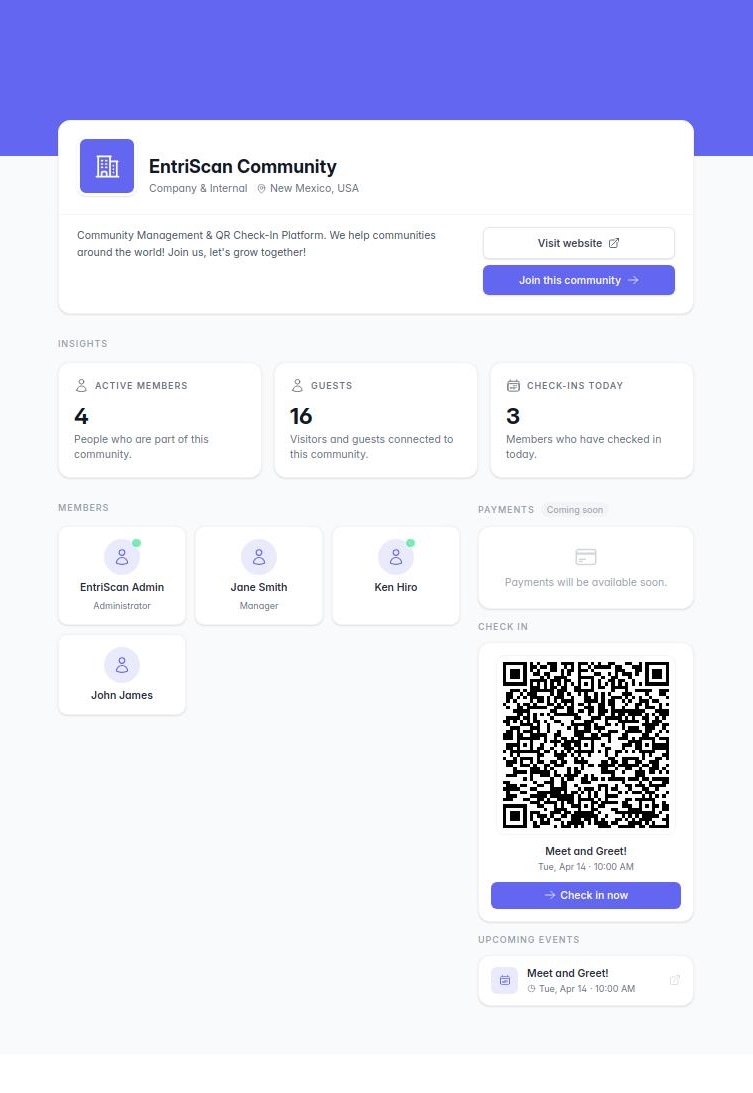
What appears on the page
- Community info: your name, type, location, and description at the top
- Members: a grid of everyone you have added to the community, with their role and bio if set
- Check-in QR: the QR code for your next upcoming event, so attendees can scan and check in directly from the page without hunting for a separate link
- Upcoming events: a list of your next events so members know what is coming
- Join button: if you link a registration form, a Join button appears so visitors can sign up to become members
Setting up your Community Page
- Go to Community in your dashboard.
- Enter your community name, a short description, and pick a cover color.
- Choose your community type and add a location.
- Toggle Public to make the page visible to anyone with the link.
- Save. Your community URL appears at the top of the settings page. Share it anywhere.
Adding members
Switch to the Members tab in the Community settings. Use the dropdown to add members from your existing list, or click Add all to bring everyone in at once. Drag and drop to change the order members appear on the public page.
To add a role or short bio for a member, open their profile from the Members section of your dashboard. A Community profile section lets you set a title and a brief description that shows on the public page alongside their name.
Linking a registration form
Want a Join button on your page? Link a registration form to your community:
- Open the Settings tab in Community.
- Under Registration form, pick any active form from the dropdown.
- Save. A "Join this community" button now appears on your public page and takes visitors directly to the form.
Anyone who fills in the form is automatically added to your Members list, ready to be invited to your next event.
Check-in QR on the public page
Your Community Page automatically shows the QR code for your nearest upcoming event. Attendees can bookmark the page and scan in from there each time, instead of looking up the event-specific link every session.
Availability
Community Pages are available on all plans, including Free. Linking a registration form and adding unlimited members requires an active paid plan. Free plan accounts are subject to the 100-member limit.
Questions? Reach us at [email protected].
Ready to try it?
Sign up free and explore all features. Upgrade to Professional to unlock the latest additions.